
Signing Keys
Create signing keys for Android and iOS. Required before publishing your app.
Signing keys are digital certificates that prove you're the developer of your app. Both Android and iOS require signing keys before you can publish. AppMyWeb stores your keys securely and uses them automatically when building.
Go to Services → Key Manager in your app dashboard.
Android Keystore
Android apps must be signed with a keystore to be published. This digital signature proves you're the developer and allows users to receive updates. AppMyWeb can generate one for you automatically, or you can upload your existing key if you've already published on Google Play.
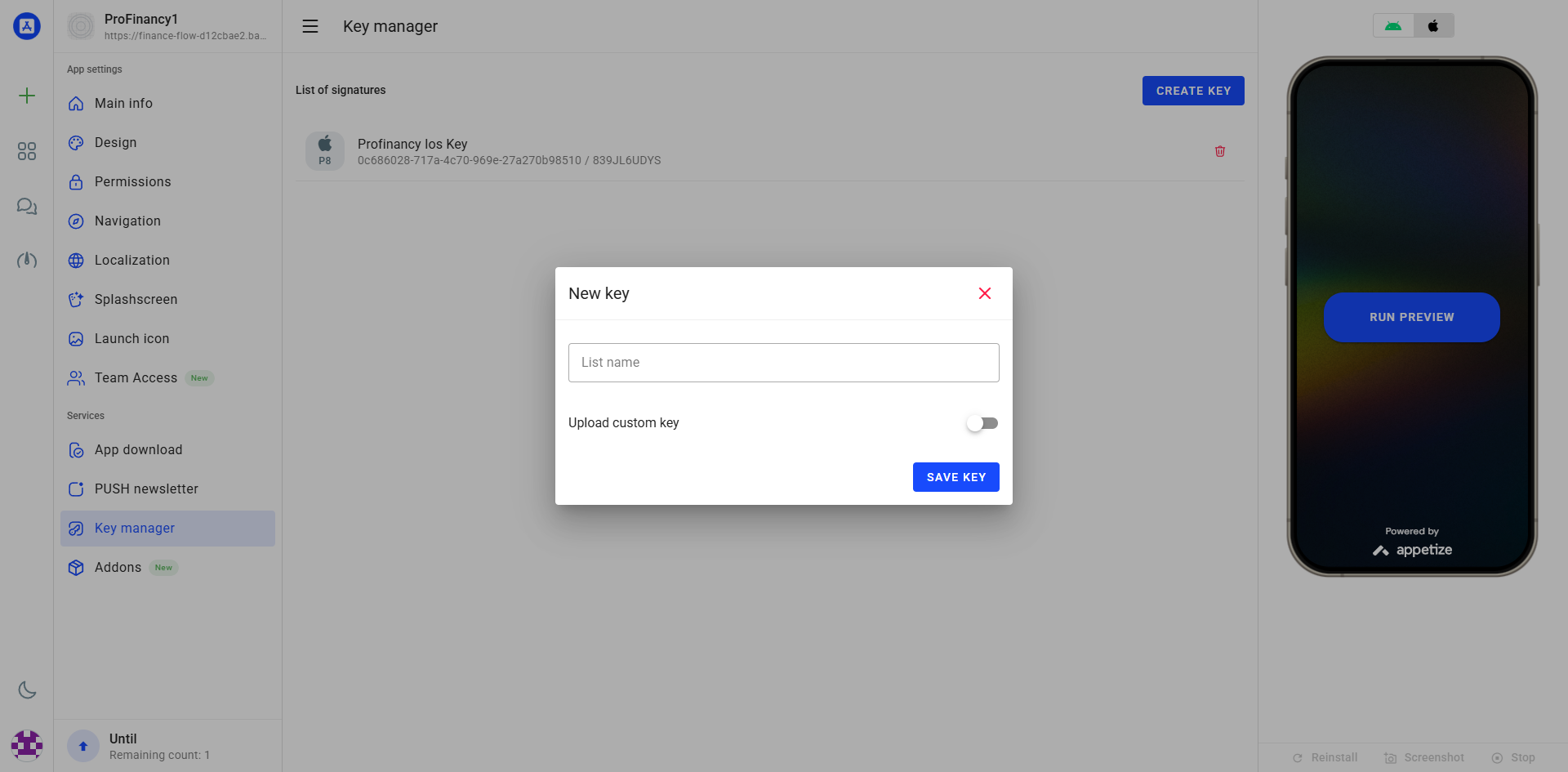
Option 1: Generate New Key (Recommended)
Let AppMyWeb generate a keystore for you automatically:
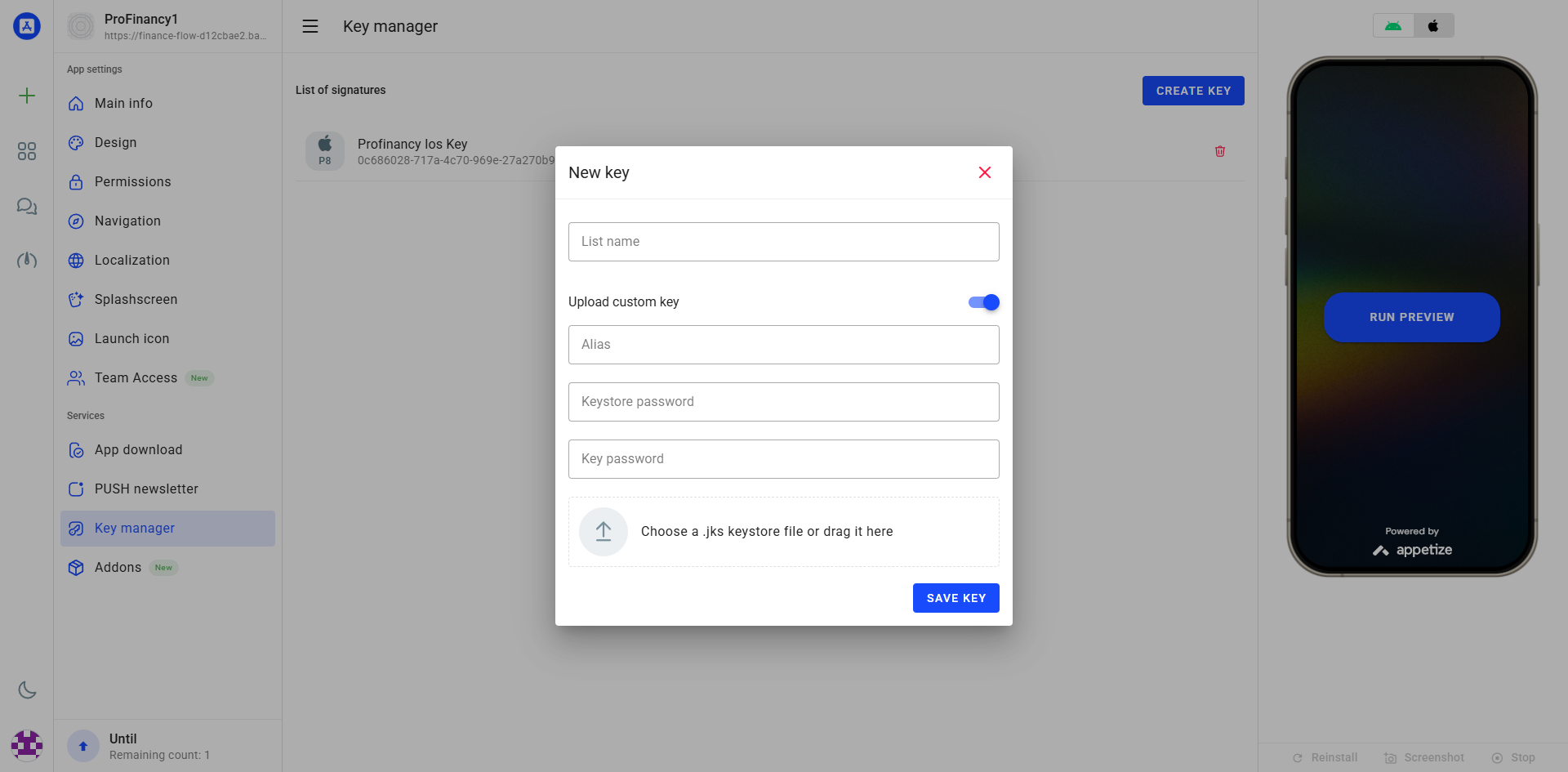
Option 2: Upload Existing Keystore
For apps already published on Google Play:
iOS API Key
Unlike Android, iOS requires an API Key that connects to your Apple Developer account. This allows AppMyWeb to publish and upload your app directly to App Store Connect on your behalf. The key is created once and can be used for all your iOS apps.
Step 1: Create API Key in Apple Developer
This step gives AppMyWeb permission to upload app files to your Apple account. You only need to do it once.
Follow these steps to create your iOS API Key:
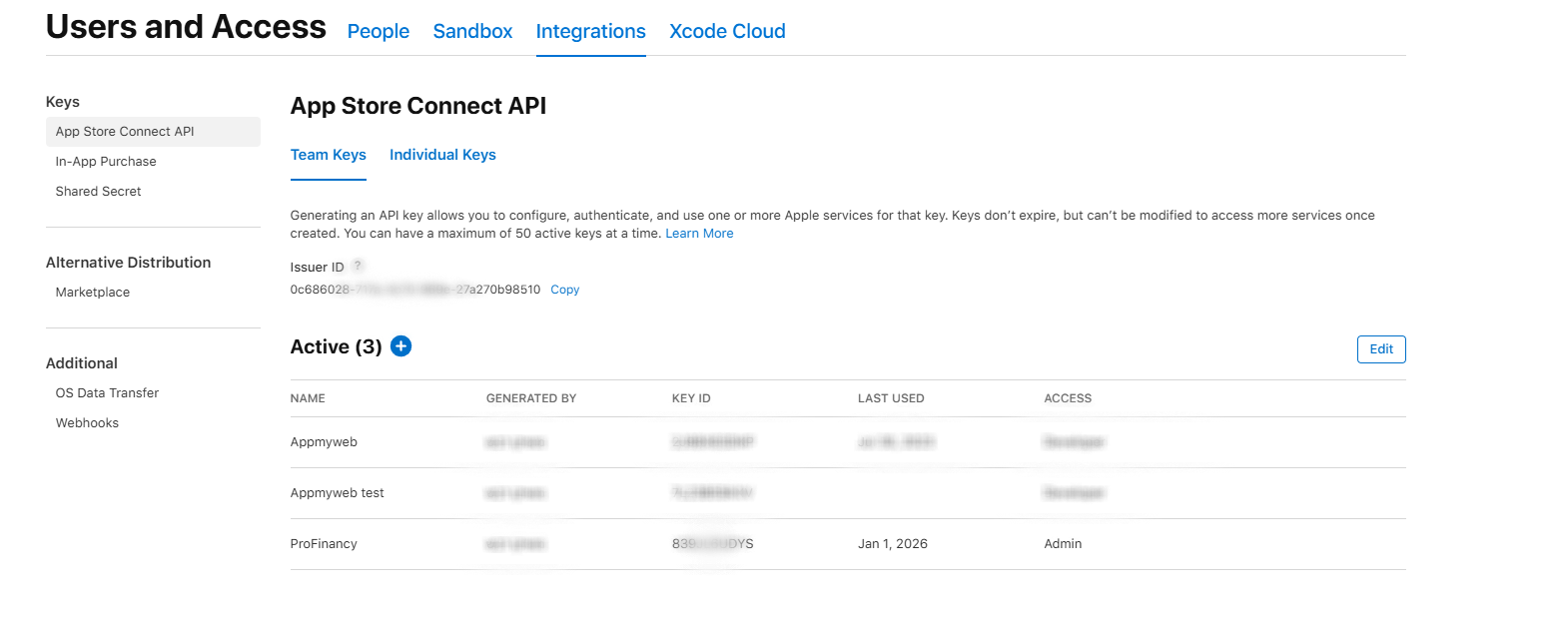
Step 2: Copy Details & Download
Save the key details carefully. You will need them when adding the key to AppMyWeb.
From the same page, copy these details:
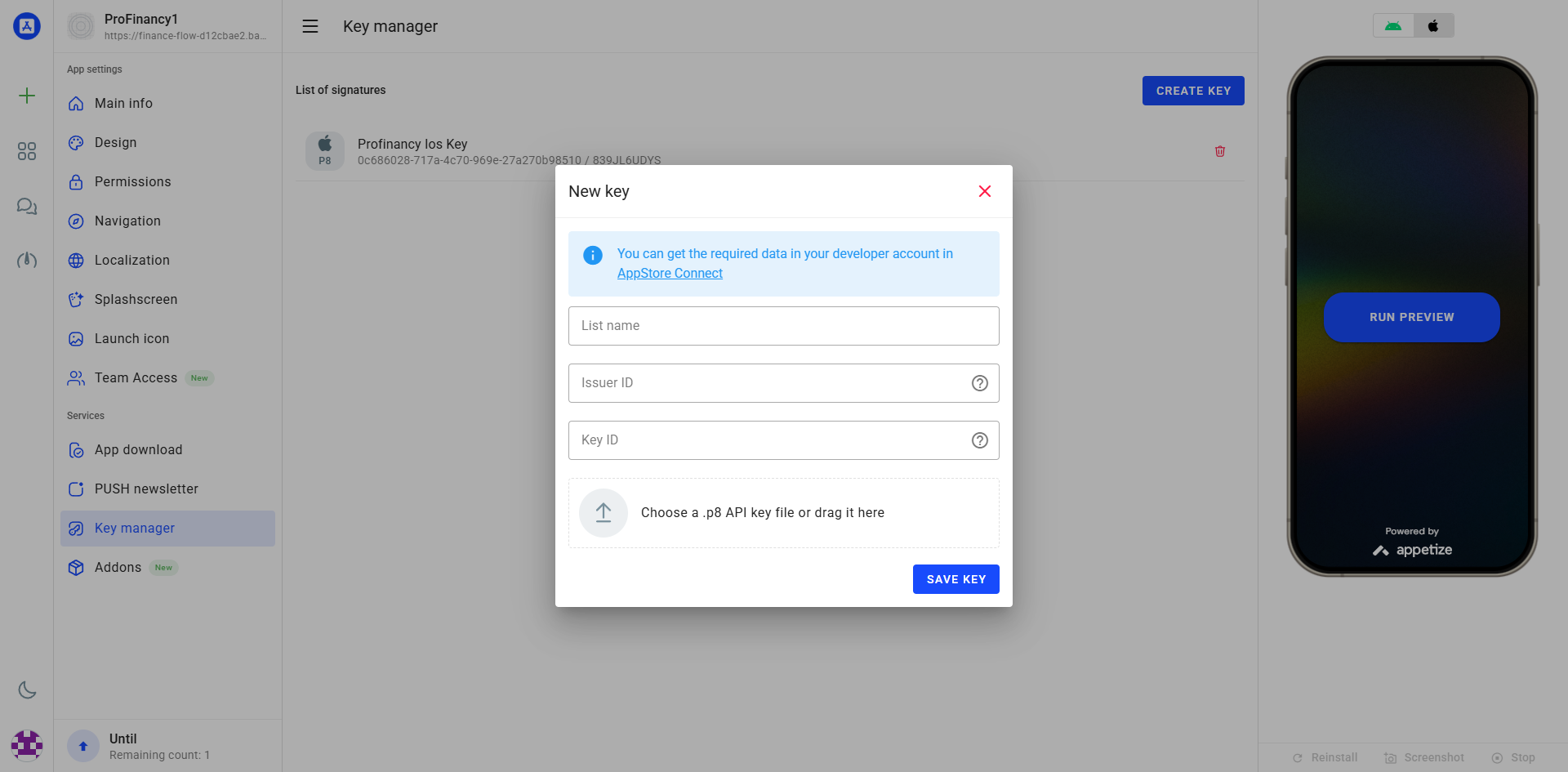
Step 3: Add to AppMyWeb
Paste the details in Key Manager so AppMyWeb can connect to App Store Connect during publishing.
In AppMyWeb → Services → Key Manager → iOS tab:
Best Practices
💾 Backup Immediately
Save keystores in multiple secure locations
🔐 Strong Passwords
Use complex passwords for keystores
🤫 Keep Private
Never share your signing keys
1️⃣ One Key Per App
Each app should have its own keystore