Getting Started
Create your account and build your first mobile app in 3 simple steps.
Step 1: Create Your Account
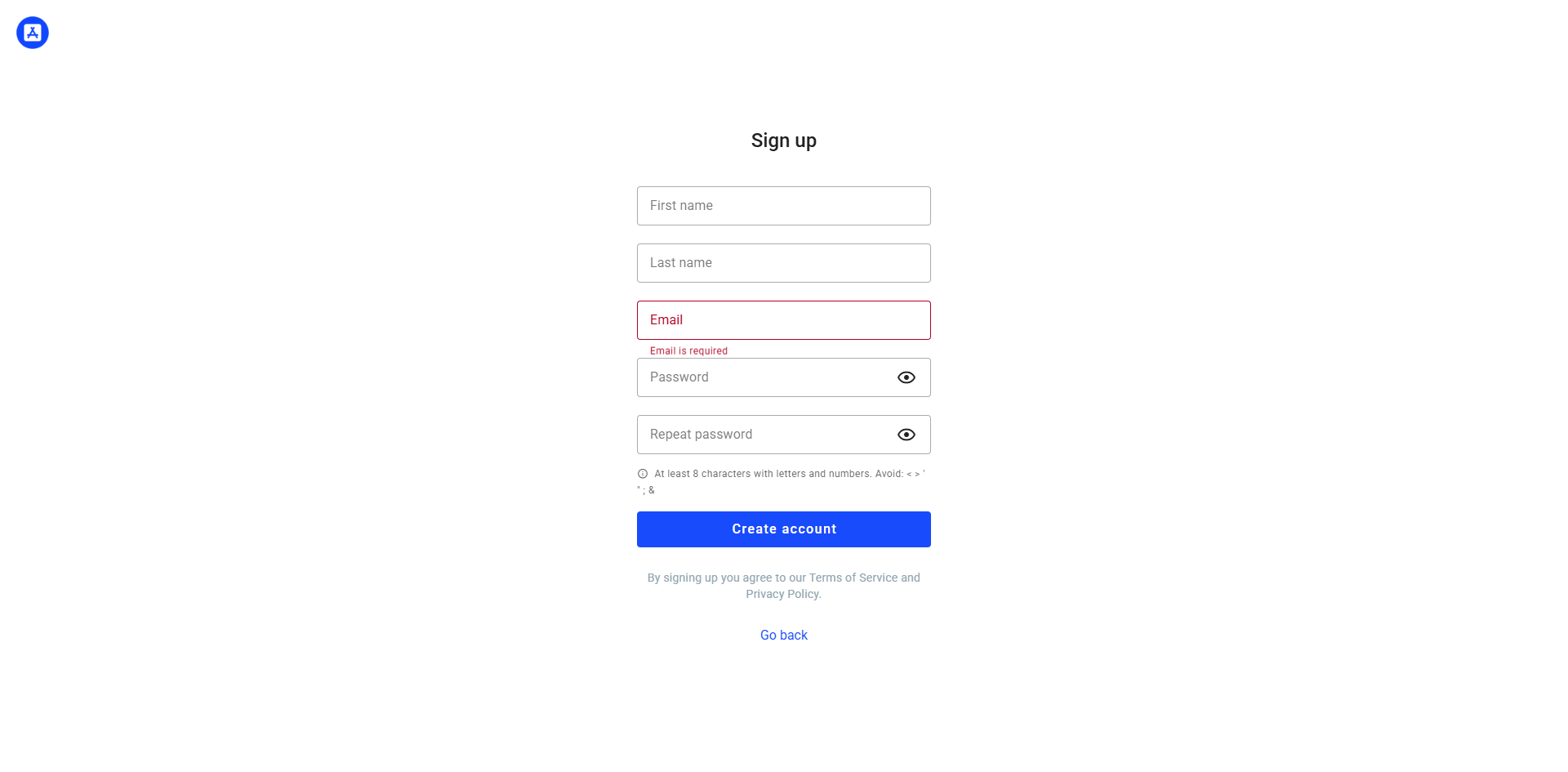
Creating an account is free and takes less than a minute. Once registered, you'll have access to the full app builder where you can create unlimited app projects and explore all the features before subscribing.
Visit my.appmyweb.net and click "Sign up".
Step 2: Create Your First App
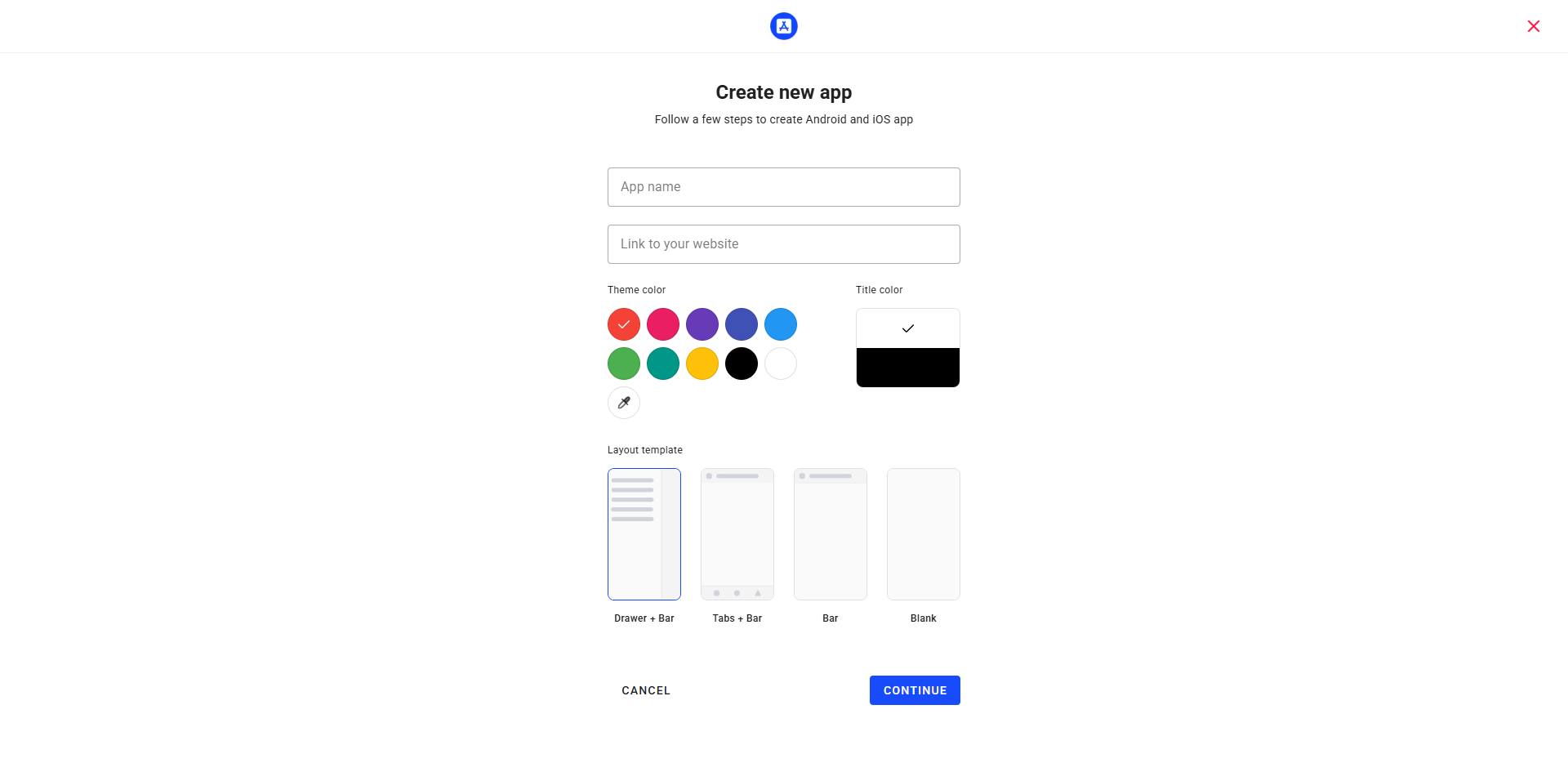
Your first app takes just a few seconds to create. Simply enter your website URL and choose a name. You can customize everything later in App Settings, so don't worry about getting it perfect right away.
Click the "+" button in the sidebar to open the app creation dialog.
https://yourwebsite.com
Click CONTINUE to create your app.
Auto-generated from your URL (e.g., com.yoursite.app). Can be changed in App Settings.
Step 3: Preview Your App
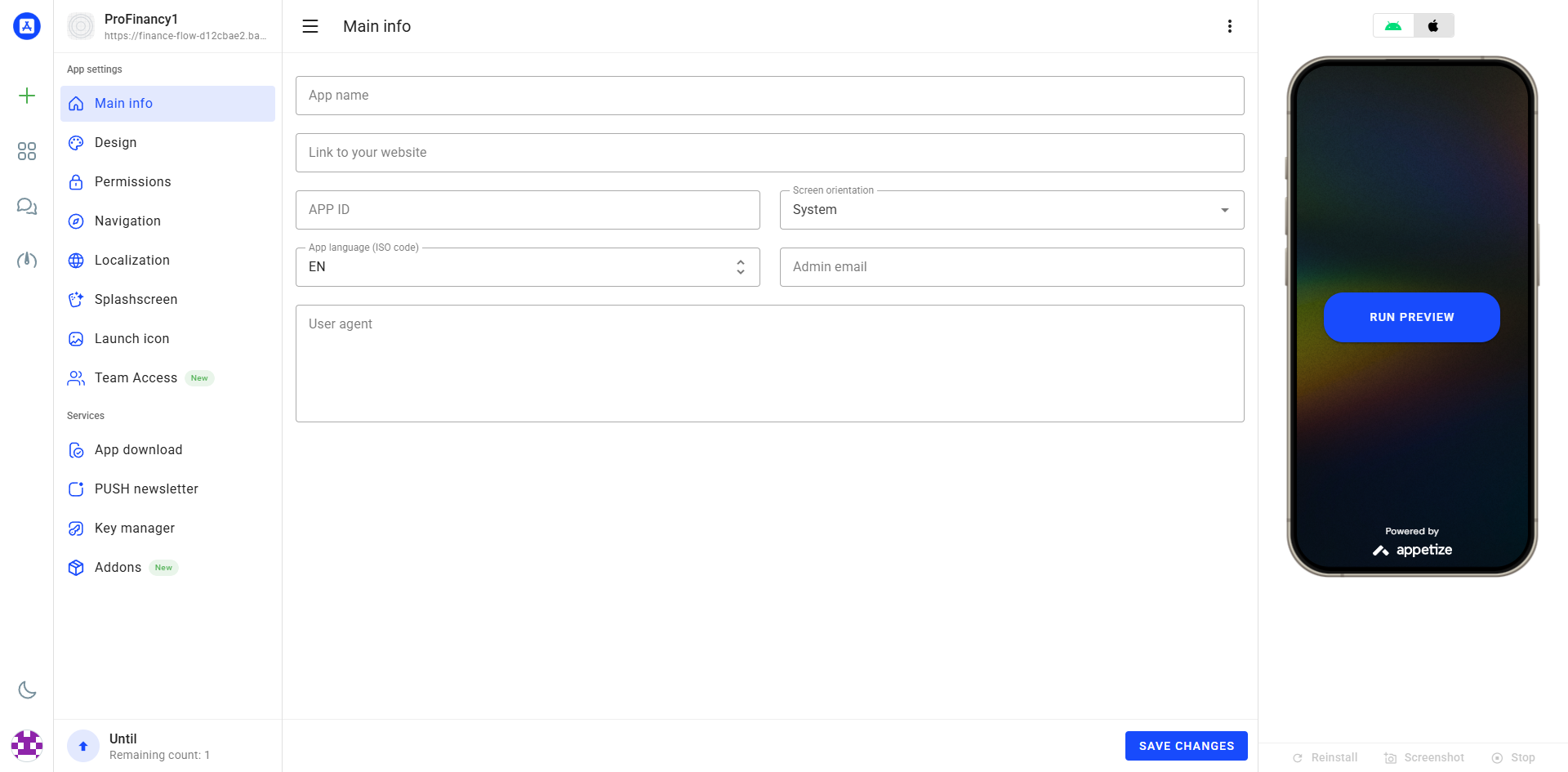
The live simulator shows exactly how your app will look and behave on a real device. Any changes you make are reflected instantly after saving, so you can experiment freely and see results in real-time.
Use the live simulator on the right side to preview how your app looks on mobile devices.